Migrating VMs with OneSwap
OpenNebula provides OneSwap, a command-line tool designed to simplify migrating Virtual Machines from vCenter to OpenNebula. OneSwap has been used in the field with a 96% success rate in converting VMs automatically, greatly simplifying and speeding up the migration process.
OneSwap supports importing Open Virtual Appliances (OVAs) previously exported from vCenter/ESXi environments. The Managing OVAs and VMDKs guide provides instructions, with complete examples.
Architecture and Requirements
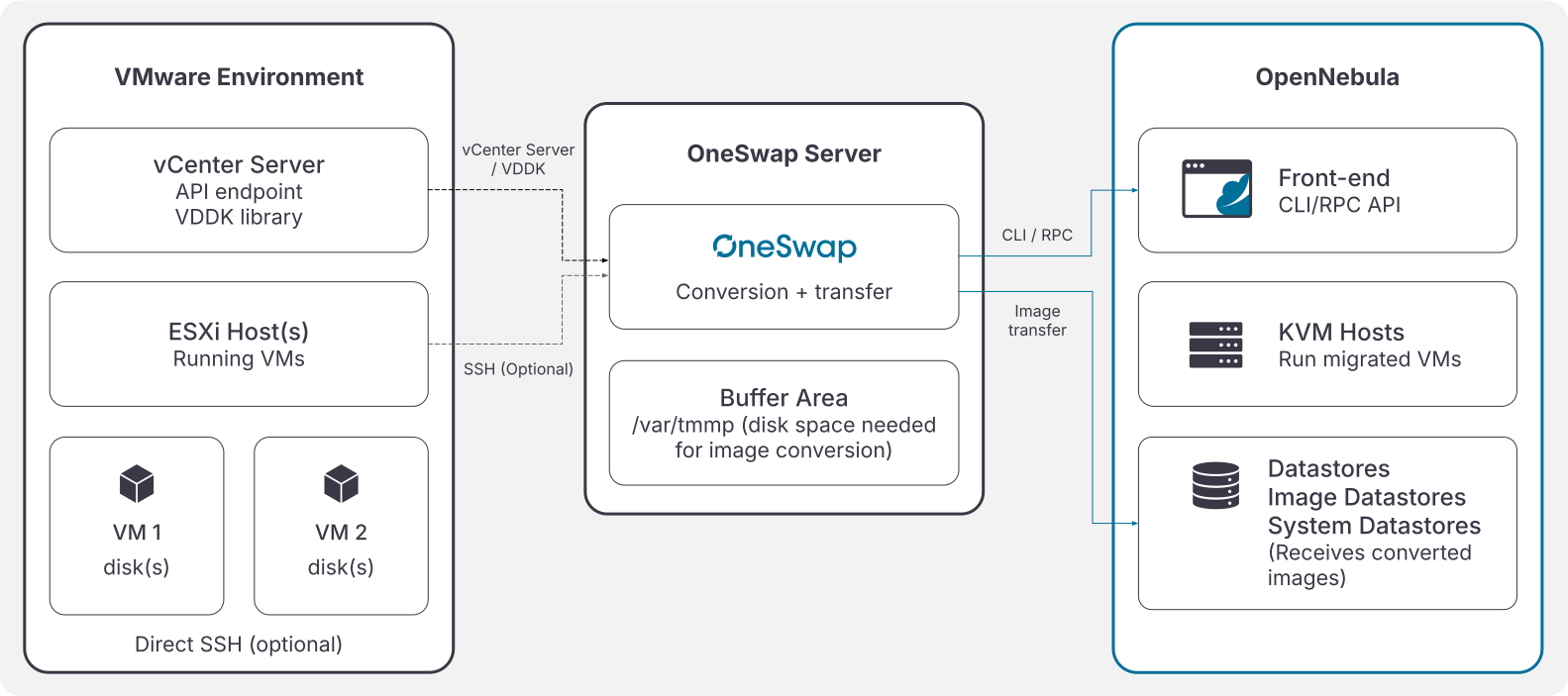
OneSwap can be run directly on the OpenNebula frontend or on a dedicated server. Running it on a separate server is recommended for production environments as it isolates the migration workload and avoids impacting the OpenNebula frontend during large or concurrent migrations.
The OneSwap server must have network access to:
- OpenNebula Front-end: to execute CLI commands (
onevm,onedatastore, etc.) and transfer converted images to the datastores. - vCenter/ESXi endpoint: to connect to the vCenter API and export virtual machine disks.
Run oneswap on a dedicated server with sufficient disk space to buffer VM images during conversion. This server should have high-bandwidth connectivity to both the vCenter environment and the OpenNebula image datastores to minimize migration time.
vCenter Permissions Requirements
OneSwap requires specific vCenter permissions depending on the conversion mode used. Below are the required privileges for vCenter 8.
Minimum Permissions (All Conversion Modes)
Datastore:
- Browse datastore - Required to discover VMDK files and VM storage configuration
- Used by: All conversion modes (standard virt-v2v, custom, hybrid, clone)
Network:
- Assign network - Required to read VM NIC configuration and network mappings
- Used by: All conversion modes
Resource:
- Assign virtual machine to resource pool - Required to read VM placement and resource allocation
- Used by: All conversion modes
Virtual machine > Change Configuration:
- Change Settings - Required to read VM hardware configuration (CPU, RAM, disks)
- Query unowned files - Required to access VM configuration files
- Used by: All conversion modes
Virtual machine > Edit Inventory:
- Create from existing - Required to read VM metadata and state
- Used by: All conversion modes
Virtual machine > Guest operations:
- Guest operation queries - Required to read guest OS information, IP addresses, and installed tools
- Used by: All conversion modes
Additional Permissions for Clone Mode (--clone)
Datastore:
- Allocate space - Required to provision storage for the cloned VM (thin provisioning)
- Used by:
--clonemode only
Folder:
- Create folder - CRITICAL - Required to create the cloned VM in the same folder as the original
- Without this permission, clone operations will fail with
FileLocked: Unable to access file since it is locked
- Without this permission, clone operations will fail with
- Used by:
--clonemode only
Virtual machine > Edit Inventory:
- Create new - Required to create the cloned VM
- Remove - Required to delete the clone after successful conversion
- Used by:
--clonemode only
Virtual machine > Provisioning:
- Clone virtual machine - Required to execute the CloneVM_Task operation
- Customize guest - Required for VM customization during cloning
- Used by:
--clonemode only
Additional Permissions for Custom/Fallback/Hybrid Modes
Datastore:
- Low level file operations - Required to download VMDK files directly from datastores
- Used by:
--custom,--fallback,--hybridmodes
Permission Setup Example
Create a custom role in vCenter 8:
Role Name: OneSwap-Standard
Description: Minimum permissions for standard virt-v2v conversions

Permissions:
  - Datastore > Browse datastore
  - Network > Assign network
  - Resource > Assign virtual machine to resource pool
  - Virtual machine > Change Configuration > Change Settings
  - Virtual machine > Change Configuration > Query unowned files
  - Virtual machine > Edit Inventory > Create from existing
  - Virtual machine > Guest operations > Guest operation queries
For clone mode support, create an extended role:
Role Name: OneSwap-Clone
Description: Permissions for clone-based conversions (zero production impact)

Includes all permissions from OneSwap-Standard, plus:
  - Datastore > Allocate space
  - Folder > Create folder
  - Virtual machine > Edit Inventory > Create new
  - Virtual machine > Edit Inventory > Remove
  - Virtual machine > Provisioning > Clone virtual machine
  - Virtual machine > Provisioning > Customize guest
For download-based conversions (custom/fallback/hybrid):
Role Name: OneSwap-Download
Description: Permissions for custom conversion modes

Includes all permissions from OneSwap-Standard, plus:
  - Datastore > Low level file operations
Important Notes:
- Assign roles at vCenter root level with “Propagate to children” enabled
- For
--clonemode, the VM must NOT have any snapshots (remove all snapshots before cloning) - For
--deltaand--esximodes, vCenter permissions are minimal as operations run via direct ESXi SSH
Installation
The package opennebula-swap, provided on the official OpenNebula Repositories, provides the command oneswap.
It can be installed in Ubuntu and Debian with
apt install opennebula-swap
And in Alma Linux and RHEL with
dnf install opennebula-swap
System Requirements
The following packages must be installed on the conversion host:
| Package | Required for |
|---|---|
virt-v2v |
All standard conversion modes |
guestfs-tools |
Context injection, --virtio, --win-qemu-ga (requires ≥ 1.49.9 for those options) |
qemu-img |
All conversion modes |
ovmf |
Migrating UEFI guests (provides OVMF firmware for x86-64); without it virt-v2v will fail with “cannot find firmware for UEFI guests” |
guestfish / virt-inspector |
Windows context injection and disk inspection |
nbdkit (with VDDK plugin) |
--vddk transfers; Debian/Ubuntu packages do not ship the VDDK plugin — see VDDK Transfer Support |
When installing OneSwap via the provided packages all dependencies are installed automatically. If deploying from source, the dependencies listed in the table above must be installed manually using the system package manager.
Requirements and recommended settings
OneSwap requirements for virtual conversion from VMware to OpenNebula are the following:
- OneSwap is only supported on Ubuntu 24.04 LTS, Debian 12 and Alma Linux/RHEL 9 servers. On previous versions of Ubuntu and Alma/RHEL some dependencies are outdated.
- A working OpenNebula environment with capacity enough to store imported images and VMs and a user with permissions on the destination datastores. Alternatively, conversion can be done with user
oneadminand set the right permissions in a posterior step. The destination user and group for the migrated objects can also be set with the--one-userand--one-groupoptions. - A vCenter endpoint with valid credentials to export the VMs.
- The parameters
vcenter,vuser,vpassandportmust be specified. - If the vCenter endpoint uses a self-signed or untrusted SSL certificate, add the
--accept-certoption (or set:accept_cert: truein the configuration file). - If Delta conversion mode is being used, the user running the
oneswapcommand must have ssh passwordless access to the ESXi host where the VMs to convert are running.
- The parameters
- If oneswap is run on a different machine than the OpenNebula frontend, then the following components must also be configured:
- Set up the transfer method options (oneswap parameters
http_transfer,http_hostandhttp_port).
- Set up the transfer method options (oneswap parameters
/etc/one/oneswap.yaml but the user running oneswap must be able to run CLI commands on the destination OpenNebula frontend (i.e. being able to run onevm list). If oneswap is ran from the frontend as oneadmin user this works directly.
oneswap runs from a server different than OpenNebula frontend, check the documentation about installing the CLI commands and export the variables ONE_XMLRPC and ONE_AUTH accordingly.Normally that means populating the file
$HOME/.one/one_auth with username:password and adding export ONE_XMLRPC=http://opennebula_frontend:2633/RPC2 on the user profile, but it is recommended to check the documentation.
Optional requirements and required tools
- VDDK library is recommended to improve disk transfer speeds. As of the moment of writing, the library can be downloaded from Broadcom developer portal. VDDK version MUST match the vCenter version.
- It is recommended to increase the vCenter API timeout to avoid request timeouts while converting big VMs. By default this value is 120 minutes and can be changed in vCenter at “Administration -> Deployment -> Client Configuration”, allowing values up to 1440 minutes (24 hours).
- The following libraries/programs must be installed
libguestfslibrary, version must be >= 1.50libvirtlibrary, version should be >= 8.7.0virt-v2v, stable version
- For Migrating with NetApp Shift,
virt-v2v-in-placemust be available onPATH, and the source NFS datastore must be mounted on the OneSwap server. No VDDK library is needed, since the disks are converted on the storage side and are never transferred through the conversion host.
Ubuntu 24.04 and AlmaLinux/RHEL 9 provide up to date versions of the packages.
VDDK Transfer Support
--vddk transfers require the nbdkit VDDK plugin, which Debian/Ubuntu packages do not ship (on RHEL install the nbdkit-vddk-plugin package). To build and install it, run once on each migration host (as root):
/usr/lib/one/oneswap/scripts/setup_nbdkit_vddk.sh
The script builds the nbdkit version matching the installed distro package and copies only the VDDK plugin into nbdkit’s plugin directory. It requires internet access, or an internal mirror via the NBDKIT_REPO_URL environment variable.
VDDK mode is also required for VMware vSAN-backed VMDKs. vSAN disks are object-backed and are not available through the classic vCenter datastore *-flat.vmdk download path used by the non-VDDK and hybrid transfer modes.
To convert VMs stored on a vSAN datastore, configure VDDK in /etc/one/oneswap.yaml:
:vddk_path: '/opt/vmware-vix-disklib-distrib/'
or pass it on the command line:
oneswap convert VM_NAME --vddk /opt/vmware-vix-disklib-distrib/
Delta and hybrid modes are currently not supported for vSAN-backed disks. Use full conversion with VDDK for vSAN-backed VMs.
Non-root libguestfs appliance
When OneSwap is executed as a non-root user, for example oneadmin, libguestfs may invoke supermin to build an appliance from the host kernel. If the active kernel image under /boot/vmlinuz-* is readable only by root, supermin can fail with:
cp: cannot open '/boot/vmlinuz-...-generic' for reading: Permission denied
libguestfs: error: /usr/bin/supermin exited with error status 1
To avoid relying on local kernel image permissions, configure OneSwap to use a prebuilt libguestfs appliance:
cd /var/lib/one
wget https://download.libguestfs.org/binaries/appliance/appliance-1.56.0.tar.xz
tar -xJf appliance-1.56.0.tar.xz
mv appliance libguestfs-appliance
chown -R oneadmin:oneadmin libguestfs-appliance
The appliance version can be adjusted to a newer available version from the libguestfs appliance directory.
Configure the appliance path in /etc/one/oneswap.yaml:
:libguestfs_path: /var/lib/one/libguestfs-appliance
Alternatively, pass the path on the command line:
oneswap convert VM_NAME --libguestfs-path /var/lib/one/libguestfs-appliance
Validate that libguestfs can start with the prebuilt appliance as the OneSwap user:
sudo -u oneadmin -H bash -lc 'LIBGUESTFS_PATH=/var/lib/one/libguestfs-appliance libguestfs-test-tool'
The expected result is:
===== TEST FINISHED OK =====
If /dev/kvm exists, add the OneSwap user to the kvm group to allow libguestfs to use hardware virtualization:
usermod -aG kvm oneadmin
If /dev/kvm is not present, hardware virtualization or nested virtualization must be enabled. Otherwise libguestfs may fall back to TCG and run much slower.
Required software for migrating Windows Virtual Machines
There are two requirements to convert Windows Virtual Machines:
- VirtIO ISO drivers are required when the converted Windows VM uses VirtIO block devices (
vd). Store the ISO on the host where OneSwap runs and configure its path with:virtio_pathin/etc/one/oneswap.yamlor pass--virtio /path/to/virtio-win.iso. - RHsrvany, an Open Source srvany implementation to create the needed Windows services during the migration.
- In Alma Linux and RHEL this package is a dependency of OneSwap and will be installed automatically
- In Ubuntu the package can be downloaded from fedoraproject.org.
For example:
:virtio_path: /usr/local/share/virtio-win/virtio-win.iso
When a Windows guest is going to use the vd device prefix and no VirtIO ISO is configured, OneSwap displays a warning before starting the conversion. The warning does not stop the conversion, but the resulting VM may fail to boot if the required storage drivers are not already installed in the guest.
For compatibility with older versions of virt-v2v the following symlinks are needed
ln -s /usr/share/virt-tools /usr/local/share/virt-tools
ln -s /usr/share/virtio-win /usr/local/share/virtio-win
Github page for the project provides instructions about how to decompress the package for Ubuntu. At the moment of writing the procedure is
apt install -y rpm2cpio

wget -nd -O srvany.rpm https://kojipkgs.fedoraproject.org/packages/mingw-srvany/1.1/11.eln153/noarch/mingw-srvany-redistributable-1.1-11.eln153.noarch.rpm

rpm2cpio srvany.rpm | cpio -idmv \
  && mkdir /usr/share/virt-tools \
  && mv ./usr/i686-w64-mingw32/sys-root/mingw/bin/*exe /usr/share/virt-tools/
Windows CompactOS Support
Windows guests that use NTFS system compression (CompactOS / WOF) fail conversion with inspection could not detect the source guest / No root device found, because the ntfs-3g inside the libguestfs appliance cannot read WOF-compressed system files. You can check a guest from an elevated prompt with:
compact /compactos:query
To enable CompactOS support, run once on each migration host (as root):
/usr/lib/one/oneswap/scripts/setup_ntfs_wof.sh
The script builds the ntfs-3g-system-compression plugin, installs it, and packs it as a supermin.d overlay so every libguestfs appliance rebuild includes it automatically (no fixed appliance or LIBGUESTFS_PATH needed). It requires internet access, or an internal mirror via the NTFS_WOF_REPO_URL environment variable.
Migrating Virtual Machines
OneSwap supports three different modes for the migration of Virtual Machines:
- Regular mode (non-delta)
- Requires VMs to be powered-off (neither suspended or hibernating)
- VMs to convert must not have any snapshot
- Clone mode (
--clone) avoids powering off the original VM- OneSwap performs a full clone of the VM in vCenter (named
<vm_name>-clone, created powered off) and converts the clone, so the original VM keeps running untouched. - The original VM must not have any snapshots before cloning.
- The clone is automatically deleted after a successful conversion. If the cleanup fails, a warning is shown and the clone must be removed manually.
- Requires the additional vCenter permissions described in Additional Permissions for Clone Mode.
- OneSwap performs a full clone of the VM in vCenter (named
- Delta mode (
--delta) is intended for low-downtime migrations (slower)- VMs must be powered on
- Requires passwordless root SSH access to the ESXi host where the VM runs.
- OneSwap creates a snapshot of the running VM, transfers and converts the base disks while the VM keeps running, and only powers off the VM for the final delta synchronization. The total downtime is reported at the end of the migration.
On Linux VMs
- The virtual machine must have the kernel headers installed. The name of the package may differ on each distribution, for instance, in Ubuntu the package to install is
linux-headersand in Alma Linux iskernel-headers. - The guest kernel version must support virtio drivers (kernel 2.6.30 or greater, which was issued on 2009-07-09).
- virt-v2v tool does not support updating GRUB2, if the following message is shown during the conversion process:
WARNING: could not determine a way to update the configuration of Grub2
booting the VM from a rescue CD and fixing grub may be necessary.
On Windows VMs
- Fast startup must be disabled (Control Panel -> Power Options -> Advanced power settings)
- Installing VirtIO Storage and Network drivers (available at their github) before the conversion will improve conversion times. If not, they will be injected later.
- Officially, Windows 2016 and onwards require UEFI boot.
- Windows VMs can only be converted with virt-v2v style transfer (
--customwill fail withWindows is not supported in OpenNebula's Custom Conversion process, and--fallbackwill fail if the custom conversion is triggered). - If the guest uses NTFS system compression, see Windows CompactOS Support.
- When the converted guest is detected as Windows, OneSwap automatically tunes the resulting OpenNebula VM Template following KVM best practices for Windows:
- Enables Hyper-V enlightenments (
HYPERV=YESplus the corresponding Hyper-V clock and feature flags inRAW), along with ACPI, APIC, PAE and LOCALTIME features. - Sets the CPU model to
host-passthrough(unless--cpu-modelwas specified), machine typeq35and architecturex86_64. - Configures a
virtiovideo device, a USB tablet input device for proper mouse handling, SCSI disk bus and automatic virtio multi-queue. - Adds
REPORT_READYandTOKENto the context section, and setsGUEST_AGENT=YESif--win-qemu-gawas used.
- Enables Hyper-V enlightenments (
Virtual machines with UEFI BIOS
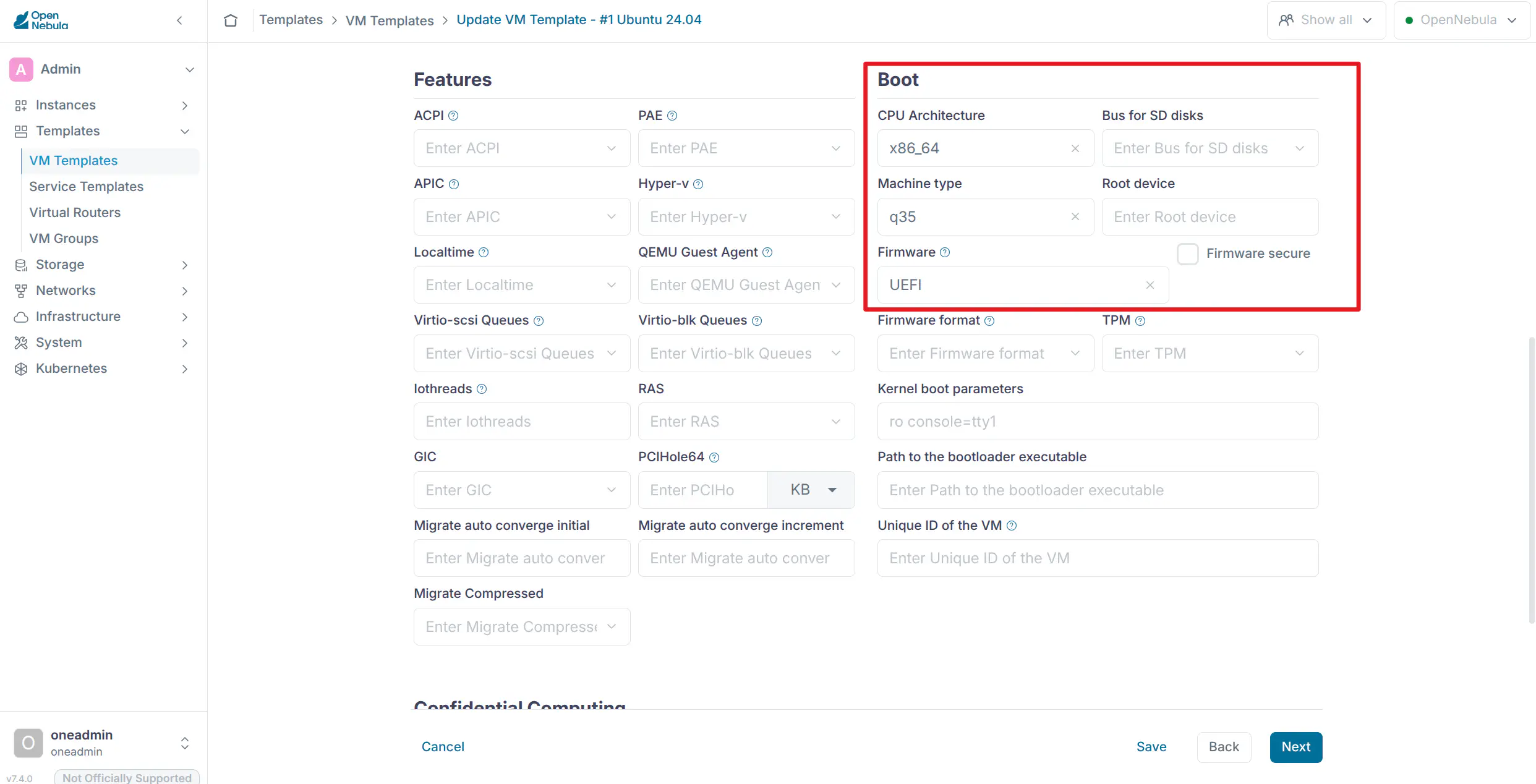
OneSwap normally detects if the VM boots in UEFI mode and sets up the OpenNebula template accordingly (including Secure Boot detection), but in some strange cases autodetection may fail. The firmware paths configured in the template can be customized with the --uefi-path and --uefi-sec-path options (by default OneSwap uses the OVMF firmware files shipped by the distribution, e.g. /usr/share/OVMF/OVMF_CODE_4M.fd on Ubuntu). If autodetection fails, modify the following options on the OpenNebula template:
-
CPU architecture:
x86_64 -
Machine type:
q35 -
UEFI firmware: UEFI (for secure firmware the box must be checked)
- In step 2 of the wizard Advanced options choose the OS & CPU tab:
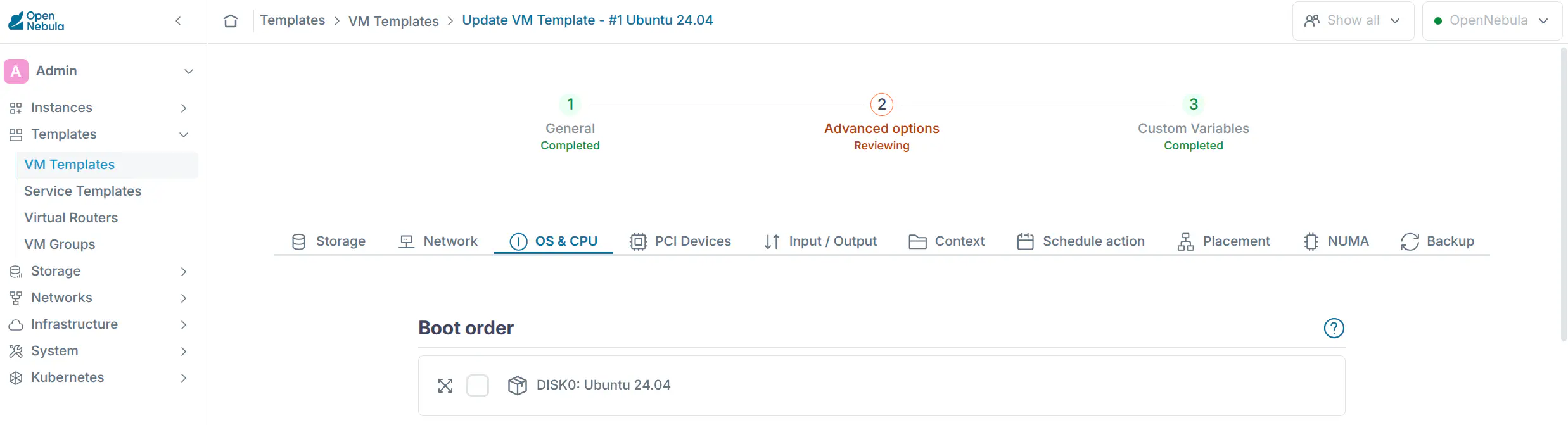
- Scroll down to the Boot section and adjust the settings:
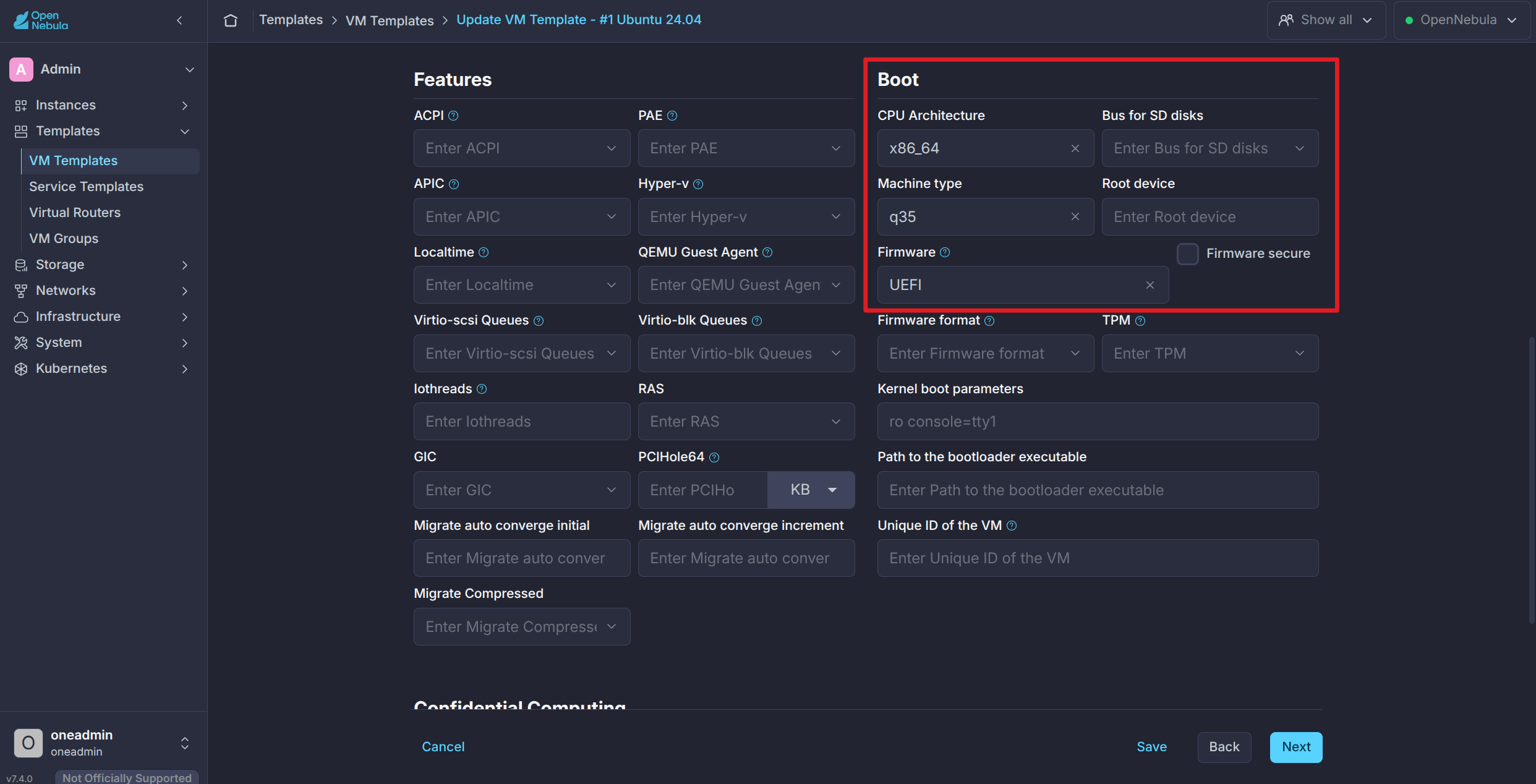
oneswap usage
The oneswap tool provides three commands:
| Command | Description |
|---|---|
oneswap list <object> |
List vCenter objects (vms, datacenters, clusters), or NetApp Shift blueprints |
oneswap convert <vm_name> |
Convert one (or a batch of) vCenter Virtual Machines |
oneswap import |
Import an OVA as a VM or a VMDK as an Image (see Managing OVAs and VMDKs) |
For convenience, it is a good practice to populate the /etc/one/oneswap.yaml file with the values that will apply for most migrated VMs (vCenter credentials, datastore, network, transfer options, etc.). If the user running oneswap has no permissions to edit the file, it can be copied, modified and oneswap executed with the parameter --config-file NEW_CONFIG_FILE.yaml. Options given on the command line are merged with the ones in the configuration file.
OneSwap logs all the operations to /var/log/one/oneswap.log. To increase the log verbosity, set the environment variable ONE_SWAP_DEBUG before running the command.
Listing vCenter resources
Before migrations, oneswap can query vCenter VMs, Data Centers and Clusters (vCenter 7, 8 and 9 are supported):
| Command | Output |
|---|---|
oneswap list datacenters |
Lists Data Centers |
oneswap list clusters [--datacenter DCName] |
List Clusters (can filter by Data Center) |
oneswap list vms [--datacenter DCName [--cluster ClusterName]] |
List VMs on vCenter. Cluster needs the Data Center name. |
The VM listing shows for each VM its vCenter reference, name, power state, ESXi host, CPU, memory and the capacity of each of its disks. The list can be filtered with the following options:
--name text: filter by VM name containingtext.--datacenter text/--cluster text: filter by Data Center / Cluster name.--state vm_state: filter VMs by their power state:poweroff,runningorsuspended.
When NetApp Shift is configured, oneswap list vms reads the VMs from a Shift blueprint instead of vCenter, and oneswap list blueprints becomes available. See Migrating with NetApp Shift.
Transfer methods
There are four methods to transfer the images from vCenter/ESXi to the conversion host:
- vCenter API (default)
- The disks are downloaded by
virt-v2vthrough the vCenter API (vpx://). No extra options are needed, but it is usually the slowest option.
- The disks are downloaded by
- VDDK Library (
--vddk /path/to/lib)- Use the VMware Virtual Disk Development Kit library, usually the fastest transfer method.
- Requires the nbdkit VDDK plugin, see VDDK Transfer Support.
- ESXi Direct SSH transfer (
--esxi,--esxi-user,--esxi-pass)- Copy the disk via SSH from the ESXi host, which may be useful if the vCenter download is slow. Incompatible with VDDK.
- The vCenter credentials are still required to gather the VM information.
- Hybrid (
--hybrid)- Use the RbVmomi2 library to download the image locally, then convert it with a local
virt-v2vrun. - Fast, but requires extra disk space as it copies the image. Incompatible with
--custom,--esxiand--vddk.
- Use the RbVmomi2 library to download the image locally, then convert it with a local
Hybrid datastore downloads can optionally use multiple HTTP Range requests in parallel with --download-stripes N or :download_stripes: N in oneswap.yaml. The default value is 1, which keeps the existing single-stream behavior. Values greater than 1 apply only to hybrid datastore transfers and require --hybrid. If HTTP Range support is not available, OneSwap falls back to the standard single-stream download.
For example:
oneswap convert VM_NAME --hybrid --download-stripes 4
All four methods move the disk data through the OneSwap server. For VMs stored on NetApp ONTAP, Migrating with NetApp Shift converts the disks on the storage side instead, removing the transfer phase altogether. It cannot be combined with any of the transfer options above.
A custom conversion option (--custom) is also provided, which is only recommended as a fallback, that does not use virt-v2v. It relies on RbVmomi2, using qemu-img and virt-customize/guestfish to prepare the image for OpenNebula. It can be useful for guest distributions which are not supported by virt-v2v or which fail to convert, but it does not support Windows guests. With --fallback, OneSwap first attempts the virt-v2v conversion and automatically retries with the custom conversion process if it fails. --fallback and --custom cannot be combined.
Converting Virtual Machines
The basic conversion of a single VM only requires the VM name and the vCenter credentials (which can also be stored in /etc/one/oneswap.yaml):
VOPTS='--vcenter 12.34.56.78 --vuser Administrator@vsphere.local --vpass changeme123'

# Convert a virtual machine
oneswap convert vm-1234 $VOPTS [--fallback|--custom] [--network ID] [--datastore ID]

# Convert a virtual machine transferring directly from ESXi
oneswap convert vm-1234 $VOPTS --esxi 12.34.56.79 --esxi-pass changeme123 [--esxi-user root]

# Convert a vCenter virtual machine utilizing the proprietary VDDK library (usually faster)
oneswap convert vm-1234 $VOPTS --vddk /path/to/vddk-lib

# Convert without powering off the original VM (clone mode)
oneswap convert vm-1234 $VOPTS --clone

# Convert a running VM with low downtime (delta mode, requires passwordless SSH to the ESXi host)
oneswap convert vm-1234 $VOPTS --delta

# Convert using OpenNebula Custom Conversion (no virt-v2v)
oneswap convert vm-1234 $VOPTS --custom

# Convert through a NetApp Shift blueprint (disks converted on the ONTAP side)
oneswap convert vm-1234 $VOPTS --shift https://12.34.56.80 --shift-user admin \
  --shift-pass changeme123 --shift-blueprint bp1 --shift-mount /mnt/shift
The conversion creates one OpenNebula Image per VM disk (named <vm_name>_<index>, in the Image Datastore selected with --datastore, default ID 1) and a VM Template with the equivalent capacity (CPU, vCPU, memory), NICs, firmware and graphics configuration. Disk conversion takes place in the working directory (--work-dir, default /var/tmp), where a subdirectory is created for each VM; with --delete-after the leftover conversion directory is removed once the images are transferred. The disk format can be selected with --format (qcow2, the default, or raw), and a custom virt-v2v executable can be set with --v2v-path.
Batch conversion
Multiple VMs can be converted sequentially in a single run, either from a file or inline:
# One VM name per line; empty lines and lines starting with # are ignored
oneswap convert --vm-list /path/to/vms.txt $VOPTS [--fallback|--custom|--hybrid]

# Comma-separated list of VM names
oneswap convert --vms vm-web-01,vm-db-01,vm-app-01 $VOPTS [--fallback|--custom|--hybrid]
The VMs are converted one at a time; if a conversion fails, the batch continues with the remaining VMs. At the end, a summary is printed with the total number of VMs requested, the successful conversions and the list of failed VMs. The command exits with code 0 if all the VMs were converted successfully and 1 otherwise. The positional VM name, --vms and --vm-list are mutually exclusive.
Estimating Migration Time with Dry Run
OneSwap can estimate the expected duration of a migration without converting the VM:
oneswap convert VM_NAME --dry-run
The dry-run estimate reports the expected time for the main phases:
- source export
- disk conversion
- OpenNebula image import
- total estimated duration
By default, OneSwap uses configured fallback transfer rates. The estimate becomes more accurate when benchmark data or previous conversion metrics are available.
To measure the OpenNebula image import speed, run:
oneswap convert VM_NAME --dry-run --benchmark-import
This creates a temporary raw file and imports it as a temporary OpenNebula Image to measure the real import speed. The temporary image and local benchmark file are removed automatically after the benchmark finishes.
To measure the source export speed from the VMware datastore, run:
oneswap convert VM_NAME --dry-run --benchmark-export
This creates a temporary benchmark file on the VMware datastore, downloads it through the same source transfer path, records the measured speed, and removes the temporary file afterward.
The benchmark results are stored in the OneSwap work directory and reused by later dry-run estimates. For HTTP transfers, OneSwap uses import benchmark metrics or configured fallback values for future estimates; real HTTP import timings from full conversions are not reused as trusted metrics.
Dry run is not available with --shift. The estimate is built around the source export and disk conversion phases, and in Shift mode neither is performed by OneSwap.
Staged Delta Migration
Delta mode can be executed as a single command:
oneswap convert VM_NAME --delta
For planned maintenance windows, the same workflow can also be split into explicit stages.
First, prepare the base disk while the source VM keeps running:
oneswap convert VM_NAME --delta --delta-prepare
This creates a VMware snapshot, clones and transfers the base disk, converts it locally, and writes the prepared delta state. The source VM keeps running, but the VMware snapshot remains active until the migration is committed or cleaned up.
After the prepare phase, estimate the final downtime/import-ready time:
oneswap convert VM_NAME --dry-run --delta
This refreshes the current delta size from the active VMware snapshot and estimates the final phase, including:
- copying the remaining delta
- applying the delta to the prepared disk
- guest OS morph/customization
- OpenNebula image import
- template creation
For a more accurate OpenNebula import estimate, the import benchmark can also be used with the delta dry-run:
oneswap convert VM_NAME --dry-run --delta --benchmark-import
When ready for the maintenance window, commit the prepared migration:
oneswap convert VM_NAME --delta --delta-commit
This applies the final delta to the prepared disk, performs the remaining guest customization, imports the image into OpenNebula, creates the VM Template, and removes the OneSwap VMware snapshot.
If the prepared migration should be cancelled, clean it up with:
oneswap convert VM_NAME --delta --delta-cleanup
This removes the OneSwap-created VMware snapshot, the temporary ESXi clone directory, and the local prepared delta state. Do not leave the prepared snapshot active indefinitely, because the delta can continue growing while the source VM is running.
--delta --delta-prepare, the source VM keeps running with an active VMware snapshot. Always finish with either --delta --delta-commit or --delta --delta-cleanup.
Prechecks
Before starting a conversion, OneSwap runs a set of prechecks against the destination OpenNebula cloud and the conversion host, and aborts early when:
- The target Image Datastore does not have enough free space for the VM disks.
- An Image named
<vm_name>_<n>or a VM Template named after the VM already exists in OpenNebula. - The OpenNebula Virtual Network passed with
--networkdoes not exist. --vddkis used but the nbdkit VDDK plugin is not installed (see VDDK Transfer Support).
For Windows guests, OneSwap also warns when:
- the conversion host lacks CompactOS/WOF support (see Windows CompactOS Support);
- the effective disk device prefix is
vdand no VirtIO driver ISO is configured throughvirtio_pathor--virtio.
The missing VirtIO ISO warning is informational and does not stop the conversion. Continuing without the drivers may result in a Windows VM that cannot boot from its VirtIO disk.
The prechecks can be skipped with --skip-prechecks.
OneSwap also requires the source VM to be powered off and free of VMware snapshots, since virt-v2v reads the live VMDKs. Those two preconditions do not apply in Shift mode, where the disks have already been converted on the storage side and OneSwap only reads qcow2 files from the mount.
If OpenNebula fails to allocate an Image or VM Template during the import phase, OneSwap reports the full error returned by the OpenNebula API and stops the current conversion. It does not continue with an invalid object ID or wait for an Image that was not created. Converted local disks are preserved according to the existing failed-conversion cleanup behavior.
Network mapping
For each NIC of the source VM, OneSwap looks for an OpenNebula Virtual Network whose VCENTER_NETWORK_MATCH attribute matches the name of the vCenter network the NIC is attached to. If no network matches, the OpenNebula Virtual Network ID passed with --network is used as a fallback (a comma-separated list of IDs, one per NIC, can also be passed). The NIC addresses copied from vCenter can be controlled with:
--skip-ip: do not pull the IP addresses from vCenter to be created in OpenNebula.--skip-mac: do not pull the MAC addresses from vCenter to be created in OpenNebula.
Contextualization and guest packages
OneSwap injects the OpenNebula context packages into the guest, automatically detecting the operating system. The packages are searched by default in /usr/share/one/context, and a different directory can be set with --context-package. The injection behavior can be tuned with the following options:
--inject-dns host|ip: passhostto copy the conversion host’s/etc/resolv.confinto the guest, or pass one or more comma-separated DNS server IPs (e.g.8.8.8.8or8.8.8.8,1.1.1.1) to generate a customresolv.conf. Useful when the guest needs working DNS resolution on first boot.--context-min-free MB: minimum free space (in MB) required on the guest root filesystem before context injection. If free space is below this threshold OneSwap warns and skips the injection. Set to0to disable the check. Default:1024.--context-fail-on-low-space: fail the disk conversion instead of warning and skipping when the guest root filesystem free space is below--context-min-free.--context-timeout SECONDS: maximum time allowed for each context injection command before it is aborted. Set to0to disable. Default:600.--disable-contextualization: remove the default contextualization options in the OpenNebula template (by default Network and SSH contextualization are enabled).
Additional guest software can be injected during the conversion:
--virtio /path/to/iso: full path of the VirtIO driver ISO used to inject storage and network drivers into Windows guests. Configure this option when Windows disks use thevddevice prefix; otherwise the converted VM may fail to boot if the drivers are not already installed.--virt-tools /path/to/virt-tools: path to the directory containingrhsrvany.exe, defaults to/usr/local/share/virt-tools(see Required software for migrating Windows Virtual Machines).--win-qemu-ga /path/to/iso: install the QEMU Guest Agent into a Windows guest.--qemu-ga: install theqemu-guest-agentpackage into a Linux guest, useful with--customor--fallback.--remove-vmtools: inject a firstboot script that removes VMware Tools from the guest on its first boot in OpenNebula (supported for both Linux and Windows guests, including Windows Server 2025).
--custom conversions, injecting VirtIO drivers or the Windows QEMU Guest Agent requires virt-customize >= 1.49.9.
Ownership and placement in OpenNebula
By default the migrated objects belong to the user running the OpenNebula CLI commands. The following options control the ownership and scheduling of the created Images and VM Template:
--one-user user/--one-group group: assign the migrated objects (Images, VM Template) to this OpenNebula user/group (name or numeric ID).--one-cluster id: ID of the OpenNebula Cluster the VM Template should be scheduled to.--one-host id: ID of the OpenNebula Host the VM Template should be scheduled to.--one-sys-ds id: ID of the System Datastore in OpenNebula the VM should be scheduled to.--one-ds-cluster id: ID of the Cluster in OpenNebula the System Datastore should be scheduled to.
Customizing the created VM Template
The capacity and devices of the created VM Template default to the values read from vCenter, and can be overridden with:
--cpu cpus/--vcpu vcpus: physical CPU / vCPU values to set in OpenNebula. Default is to match the CPU cores in vCenter.--memory-max memorymb/--vcpu-max vcpumax: maximum memory (MB) and vCPU values for hot resize. Memory/CPU Hot Add must be enabled in VMware (when enabled in vCenter, hot resize is configured automatically in the template).--cpu-model model_type: set a specific CPU model in OpenNebula. Default is none (for Windows guests,host-passthroughis set automatically).--dev-prefix prefix: the dev prefix to use on the disks in OpenNebula (e.g.sd,hd,vd,xvd). Default is none (Windows disks default tovd).--persistent-img: make the created images persistent in OpenNebula.--img-wait sec: the amount of time to wait for each image to be created in OpenNebula. Default is 120 seconds.--graphics-type type: graphics type to enable in OpenNebula (vnc,sdl,spice), with the related--graphics-listen,--graphics-port,--graphics-keymap,--graphics-passwordand--graphics-commandoptions.--uefi-path /path/to/uefi/--uefi-sec-path /path/to/uefi.secboot: paths to the UEFI (Secure Boot) firmware files to be configured in the VM template for UEFI guests.--root option: choose the root filesystem to be converted when the guest has several (ask,single,firstor/dev/sdX). Default:first.
Migrating with NetApp Shift
When the source VMs are stored on NetApp ONTAP, the disk conversion can be delegated to a NetApp Shift Toolkit appliance instead of being performed by virt-v2v on the conversion host. Shift converts the VMDKs into qcow2 on the storage side using FlexClone, so the disk data never travels through the OneSwap server. This removes the transfer phase entirely, which is normally the longest part of a migration.
OneSwap still performs the rest of the migration: it reads the VM properties from vCenter, prepares the guest (OS morph, contextualization, VirtIO, QEMU Guest Agent), creates the OpenNebula Images and builds the VM Template.
Prerequisites
The following must be created in the Shift UI before OneSwap is used. OneSwap never writes to this side of the appliance:
- A source site (vCenter + ONTAP) and a destination site (KVM).
- One or more resource groups containing the VMs to convert.
- A blueprint (DR plan) referencing those resource groups.
Keeping the blueprint as the unit of work is deliberate: a blueprint defines which wave of VMs moves together, and one execution converts every VM in its resource groups in parallel.
On the OneSwap server:
- The source NFS datastore must be mounted locally, and the mount point passed with
--shift-mount. Shift writes the converted disks there, next to each VM folder:<vm_name>.qcow2for the first disk and<vm_name>_1.qcow2,<vm_name>_2.qcow2, … for the rest. virt-v2v-in-placemust be installed. On some distributions it lives in/usr/libexecand that directory must be added toPATH.- vCenter credentials are still required. The CPU, memory, firmware, NICs and tags used to build the VM Template come from vCenter even though the disks do not.
- The mount point and the working directory (
--work-dir) must not overlap, since the cleanup routines delete inside the working directory.
Listing blueprints and their VMs
With Shift configured, oneswap list can read from the appliance instead of vCenter, which is the recommended way to confirm the right blueprint before converting anything:
| Command | Output |
|---|---|
oneswap list blueprints |
Blueprints on the appliance, their resource groups and VM count |
oneswap list vms --shift-blueprint NAME |
The VMs that blueprint would convert |
SOPTS='--shift https://12.34.56.80 --shift-user admin --shift-pass changeme123'

oneswap list blueprints $SOPTS
oneswap list vms $SOPTS --shift-blueprint bp1 --no-expand
oneswap list vms reads from Shift whenever --shift is set (including from oneswap.yaml) and from vCenter otherwise. list datacenters and list clusters are vCenter concepts and always query vCenter. Since the Shift listings have few columns, --no-expand usually gives more readable output.
Converting
VOPTS='--vcenter 12.34.56.78 --vuser Administrator@vsphere.local --vpass changeme123'
SOPTS='--shift https://12.34.56.80 --shift-user admin --shift-pass changeme123'
SOPTS="$SOPTS --shift-blueprint bp1 --shift-mount /mnt/shift"

# Convert and import every VM in the blueprint
oneswap convert $VOPTS $SOPTS

# Import only some of them, in the given order (the blueprint still runs once)
oneswap convert $VOPTS $SOPTS --vms vm-web-01,vm-db-01

# Import a single VM
oneswap convert vm-web-01 $VOPTS $SOPTS
Unlike the other conversion modes, the VM name is optional: with no VM name, --vms or --vm-list, OneSwap imports every VM in the blueprint. Requested names are validated against the blueprint contents before anything expensive happens, so a typo fails immediately instead of after the conversion.
Each run performs, once per invocation:
- Reads the blueprint’s current state. If it has already been converted, the trigger is skipped and the existing disks are reused; if an execution is still running, OneSwap attaches to it and waits.
- Runs the Shift compliance check.
- Triggers the blueprint execution in
convertmode and waits for it to finish, polling the execution’s job steps. The wait is unbounded by default;:shift_wait_timeout:inoneswap.yamlsets a ceiling in seconds. - For each requested VM: locates its qcow2 disks on the mount, runs
virt-v2v-in-placeon them, then contextualizes, creates the Images and builds the VM Template exactly as the other modes do.
virt-v2v-in-place and the contextualization run directly against the qcow2 files on the mount, with no local copy, so that terabyte-sized disks do not need to fit on the conversion host. This modifies Shift’s output. To regenerate a disk, clear the blueprint execution in the Shift UI and run it again. Importing the same VM twice without regenerating would morph an already-morphed guest.
Power state
The two Shift operations disagree about whether the source VMs should be running, which is worth knowing before planning a migration window:
- The compliance check expects the VMs to be powered on, and reports them as failed resources (
{"powerState":"POWERED_OFF"}) when they are not — even though the conversion then succeeds. - The convert execution expects them to be powered off, and is rejected otherwise with
ERSCSTEX022, listing the VMs that are still running. It checks every VM in the blueprint, not only the ones being imported.
Both combinations work:
# VMs powered off: the compliance check objects to that state, so skip it
oneswap convert $VOPTS $SOPTS --shift-skip-compliance

# VMs left running: compliance passes, the convert execution needs the override
oneswap convert $VOPTS $SOPTS --shift-ignore-running-vms
--shift-ignore-running-vms is the same override as the Continue button in the Shift UI prompt. Shift then converts from a point-in-time snapshot, so the resulting disks are crash-consistent rather than quiesced. That is acceptable for most guests but not for databases or other write-heavy workloads; powering the VM down first remains the safer option. When the execution is rejected for this reason, OneSwap names the flag in the error so the run can be retried directly.
Guests that virt-v2v cannot convert
virt-v2v-in-place only recognizes the guest operating systems it supports, and rejects the rest with virt-v2v is unable to convert this guest type. Alpine Linux is one example. Such guests frequently boot under KVM unmodified because VirtIO is already built into the kernel, so the OS morph can be skipped:
oneswap convert alpine-vm $VOPTS $SOPTS --shift-skip-morph
The disks are then imported exactly as Shift produced them. Contextualization and Image creation still run. OneSwap names this flag in the error when it encounters an unsupported guest type.
Shift options
| Option | Description |
|---|---|
--shift server |
Appliance URL, scheme and host only (the service ports are added per request) |
--shift-user, --shift-pass |
Shift credentials |
--shift-blueprint name |
Blueprint to execute |
--shift-mount path |
Local mount point of the source NFS datastore |
--shift-skip-compliance |
Skip the compliance check, still trigger the blueprint |
--shift-ignore-running-vms |
Convert even if blueprint VMs are powered on |
--shift-skip-morph |
Import the converted disks without running virt-v2v-in-place |
--shift-skip-conversion |
Do not contact Shift at all; import disks already present on the mount |
All of them can also be set in oneswap.yaml as :shift:, :shift_user:, and so on, along with :shift_wait_timeout:.
:shift: in oneswap.yaml puts every oneswap convert run into Shift mode, and makes oneswap list vms read from the appliance.
Compatibility with other OneSwap features
Shift replaces the transfer and disk-conversion phases, so it cannot be combined with the options that implement those phases. OneSwap rejects the following combinations before doing any work:
Incompatible with --shift |
Reason |
|---|---|
--vddk, --esxi, --hybrid, --download-stripes |
Transfer methods move the disks to the conversion host; Shift converts them on the storage side, so no transfer takes place |
--custom, --fallback |
Alternative virt-v2v conversion paths, replaced by Shift |
--delta, --delta-prepare, --delta-commit, --delta-cleanup |
Staged Delta Migration is a different low-downtime strategy, based on VMware snapshots and ESXi SSH access |
--clone |
Clone mode exists to convert a running VM; Shift addresses that with --shift-ignore-running-vms |
--dry-run |
The estimator models source export and disk conversion, neither of which OneSwap performs in Shift mode |
Everything else behaves as usual, with two differences worth noting:
- Prechecks. The OpenNebula-side prechecks (datastore space, name collisions, network) run normally. The powered-off and no-snapshot preconditions are not applied, because OneSwap never reads the VMware disks in this mode, and Shift’s own clone leaves a snapshot behind.
- Batch conversion.
--vmsand--vm-listwork as described in Batch conversion, except that the blueprint is executed only once for the whole batch rather than per VM.
Running OneSwap on a dedicated server
When oneswap runs on a server different from the OpenNebula frontend, the converted images cannot be registered from a local path. In this case OneSwap can serve the converted disks to the frontend over HTTP:
--http-transfer: transfer images over HTTP. OneSwap starts a temporary HTTP server during the image registration.--http-host host: IP of the OneSwap machine the frontend will download the images from. Autodetected if not specified.--http-port port: port of the temporary HTTP server. Default:29869.
Using an alternative OpenNebula endpoint (--endpoint) requires HTTP transfer to be enabled. Make sure the OpenNebula frontend can reach the OneSwap server on the configured port.
For dry-run import benchmarks and real image imports from a dedicated OneSwap server, the OpenNebula frontend must be able to reach the OneSwap server on --http-host and --http-port.
Local path image registration is only safe when OneSwap runs on the OpenNebula frontend or when the work directory is shared with the frontend. Use HTTP transfer for dedicated OneSwap servers.
GIVE FEEDBACK
Was this resource helpful?
Glad to hear it
Sorry to hear that