FireEdge Configuration
The OpenNebula FireEdge server provides a next-generation web-management interface for remote OpenNebula Cluster provisioning as well as additional functionality to Sunstone. It’s a dedicated daemon installed by default as part of the Single Front-end Installation, but can be deployed independently on a different machine. The server is distributed as an operating system package opennebula-fireedge with the system service opennebula-fireedge.
Main Features
- Guacamole Proxy for Sunstone to remotely access the VMs (incl., VNC, RDP, and SSH)
- FireEdge Sunstone: new iteration of Sunstone written in React/Redux. Accessible through the following URL:
http://<OPENNEBULA-FRONTEND>:2616
Configuration
The FireEdge server configuration file can be found in /etc/one/fireedge-server.conf on your Front-end. It uses YAML syntax, with the parameters listed in the table below.
| Parameter | Default Value | Description |
|---|---|---|
log |
prod |
Log debug: prod or dev |
cors |
true |
Enable CORS (cross-origin resource sharing) |
host |
0.0.0.0 |
IP on which the FireEdge server will listen |
port |
2616 |
Port on which the FireEdge server will listen |
one_xmlrpc |
http://localhost:2633/RPC2 |
Endpoint of OpenNebula XML-RPC API. It needs to match the ENDPOINT attribute of onezone show 0 |
oneflow_server |
http://localhost:2474 |
Endpoint of OneFlow server |
session_expiration |
180 |
JWT expiration time (minutes) |
session_remember_expiration |
3600 |
JWT expiration time when using remember check box (minutes) |
default_zone |
Shows the default resources of that zone | |
default_zone/id |
0 |
Id of the zone to which this fireedge belongs |
default_zone/name |
OpenNebula |
Name of the zone to which this fireedge belongs |
default_zone/endpoint |
http://localhost:2633/RPC2 |
XML-RPC url of the zone to which this fireedge belongs |
minimun_opennebula_expiration |
30 |
Minimum time to reuse previously generated JWTs (minutes) |
subscriber_endpoint |
tcp://localhost:2101 |
Endpoint to subscribe for OpenNebula events |
debug_level |
2 |
Log debug level |
truncate_max_length |
150 |
Log message max length |
api_timeout |
120_000 |
Global API timeout limit |
guacd/port |
4822 |
Connection port of guacd server |
guacd/host |
localhost |
Connection hostname/IP of guacd server |
auth |
opennebula |
Authentication driver for incoming requests: OpenNebula the authentication will be done by the OpenNebula core using the driver defined for the user. remote performs the login based on a Kerberos X-Auth-Username header provided by authentication backend |
auth_redirect |
This configuration is for the login button redirect. The available options are: /, . or a URL |
FireEdge Sunstone
The Sunstone server configuration file can be found in /etc/one/fireedge/sunstone/sunstone-server.conf on your Front-end. It uses the YAML syntax, with the parameters listed in the table below.
| Parameter | Default Value | Description |
|---|---|---|
support_url |
https://opennebula.zendesk.com/api/v2 |
Zendesk support URL |
token_remote_support |
Support enterprise token | |
sunstone_prepend |
Optional parameter for Sunstone commands command |
|
tmpdir |
/var/tmp |
Directory to store temporal files when uploading images |
max_upload_file_size |
10737418240 |
Max size upload file (bytes). Default is 10GB |
proxy |
Enable an http proxy for the support portal and to download MarketPlaceApps | |
leases |
Enable the vm leases | |
supported_fs |
Support filesystem | |
currency |
EUR |
Currency formatting |
default_lang |
en |
Default language setting |
langs |
List of server localizations | |
keep_me_logged_in |
true |
True to display ‘Keep me logged in’ option |
use_extended_vmpool |
true |
True to use the extended information fetch for vm pools |
currentTimeZone |
Time Zone | |
rowStyle |
card |
Changes the style of rows in tables. Values can be card or list. |
dateFormat |
dd/MM/yyyy |
Date display format (Luxon tokens). The time is always HH:mm:ss. |
Once the server is initialized, it creates the file /var/lib/one/.one/fireedge_key, used to encrypt communication with Guacd.
In HA environments, fireedge_key needs to be copied from the first leader to the followers. Optionally, in order to have the provision logs available in all the HA nodes, /var/lib/one/fireedge needs to be shared between nodes.
Tuning and Extending
Branding FireEdge
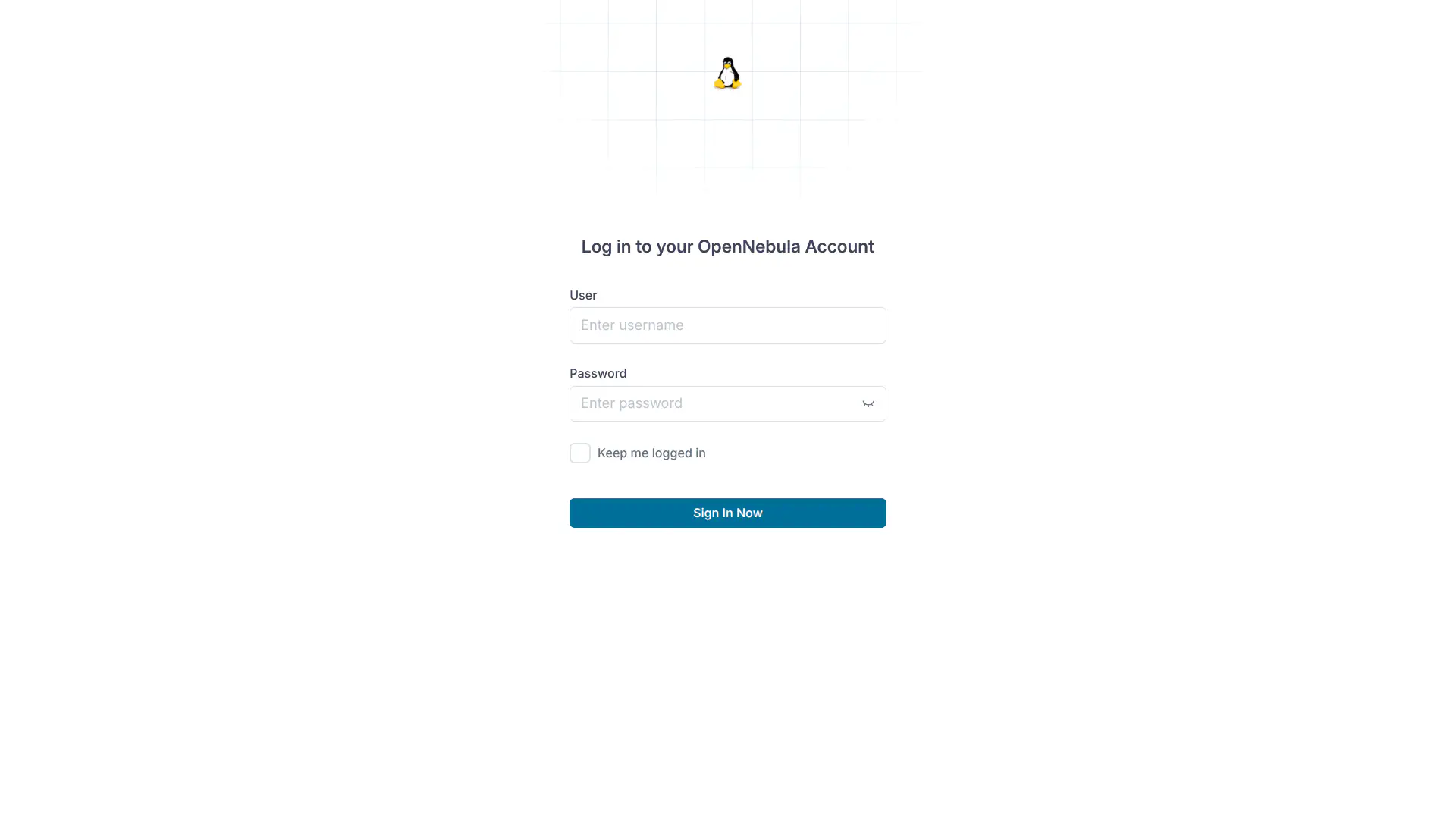
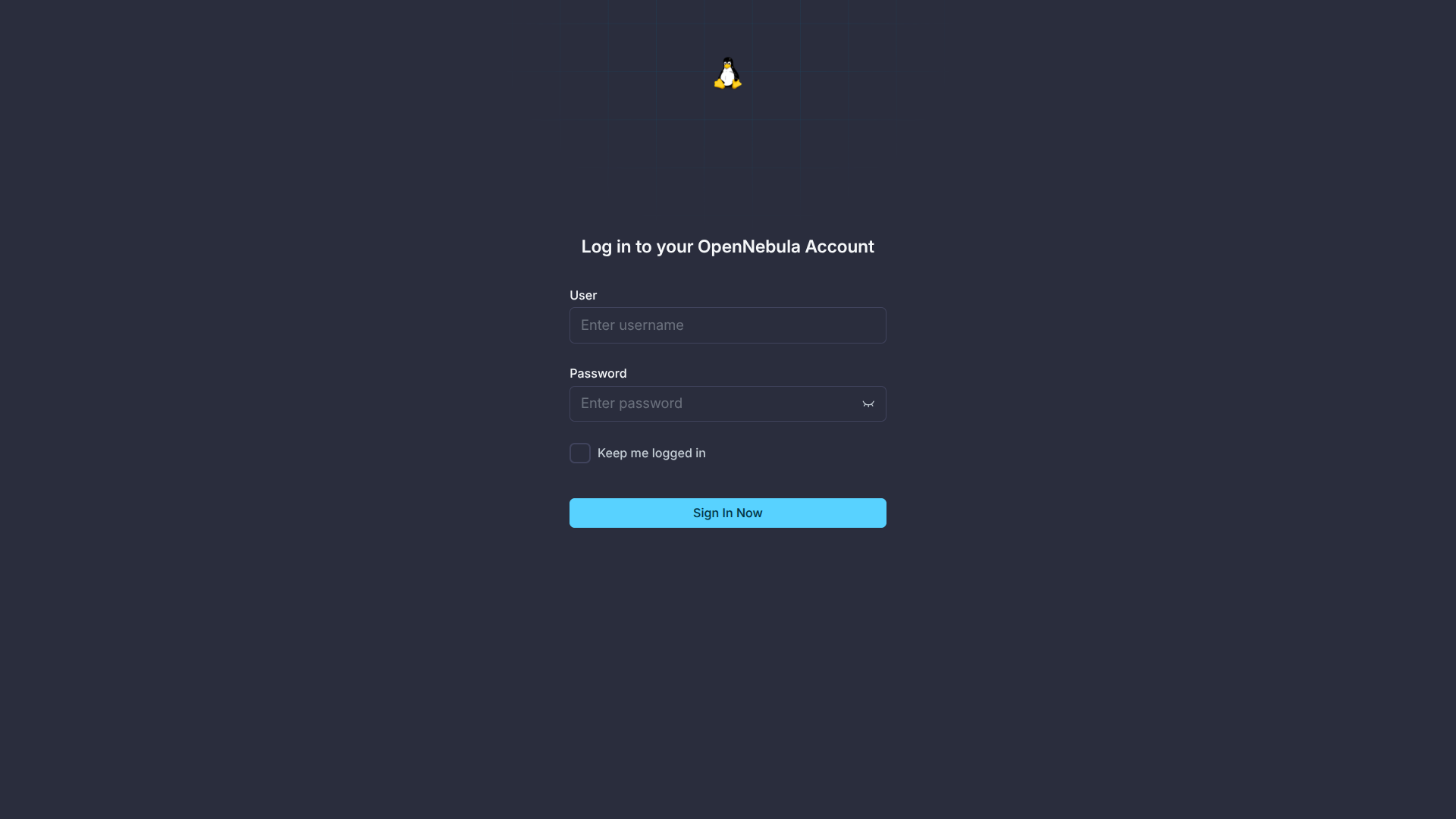
You can add your logo to the login, main, and loading screens by updating the logo: attribute as follows:
- The logo configuration is found in the
/etc/one/fireedge/sunstone/views/sunstone-views.yamlfile. - The logo of the main UI screen is defined for each view.
The logo image must be copied to /usr/lib/one/fireedge/dist/client/assets/images/logos.
You can also add a custom favicon by updating the favicon: attribute defined in the /etc/one/fireedge/sunstone/views/sunstone-views.yaml file. The favicon must be copied to /usr/lib/one/fireedge/dist/client/assets/images/favicon.
The following example demonstrates how to change the logo and the favicon to a generic Linux logo (included by default in all FireEdge installations):
# /etc/one/fireedge/sunstone/views/sunstone-views.yaml
---
logo: linux.png
favicon: linux.png

groups:
    oneadmin:
        - admin
        - user
default:
    - user
logo: is defined and the attribute favicon: is not defined, the logo: attribute will be used as favicon.
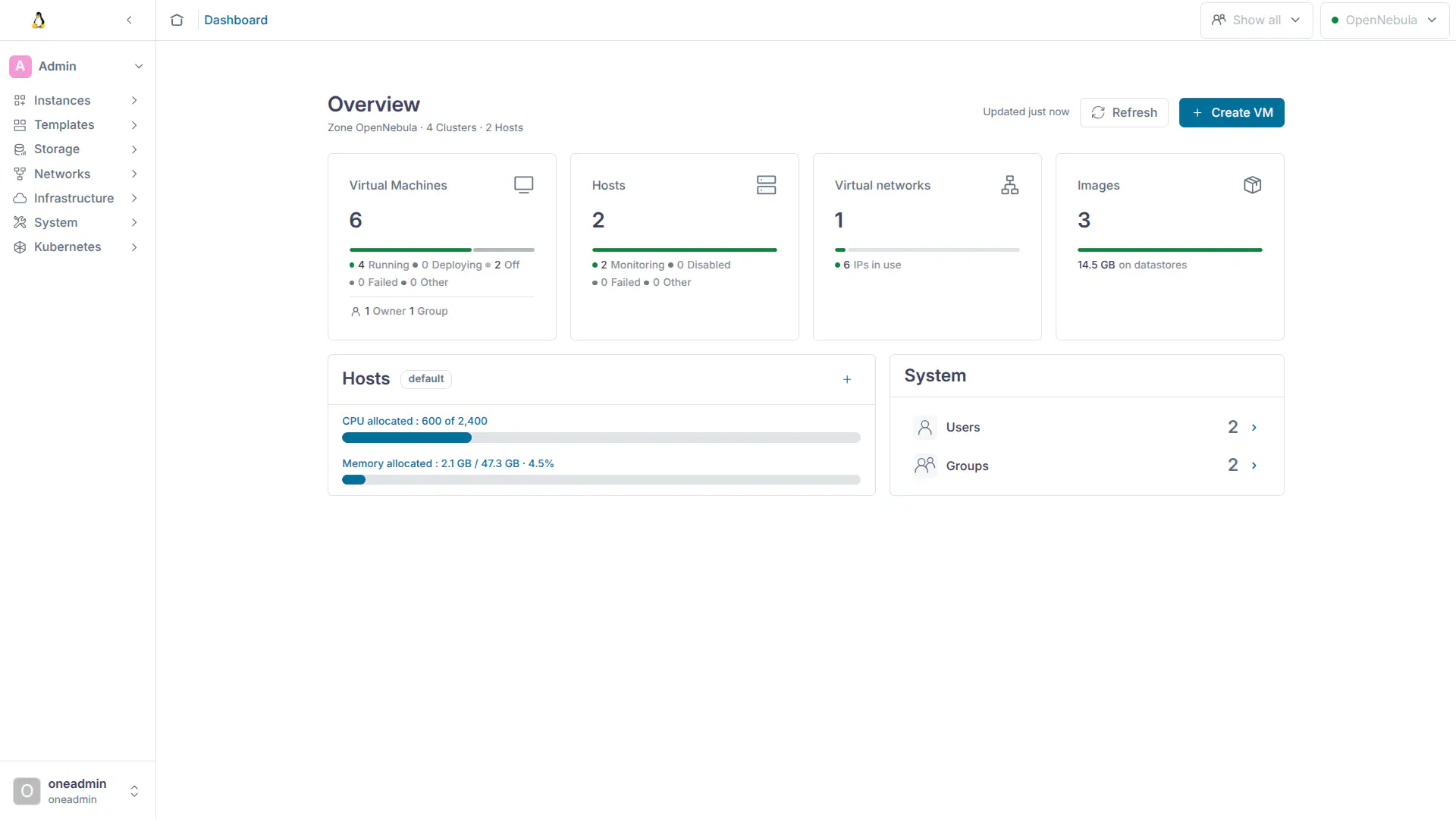
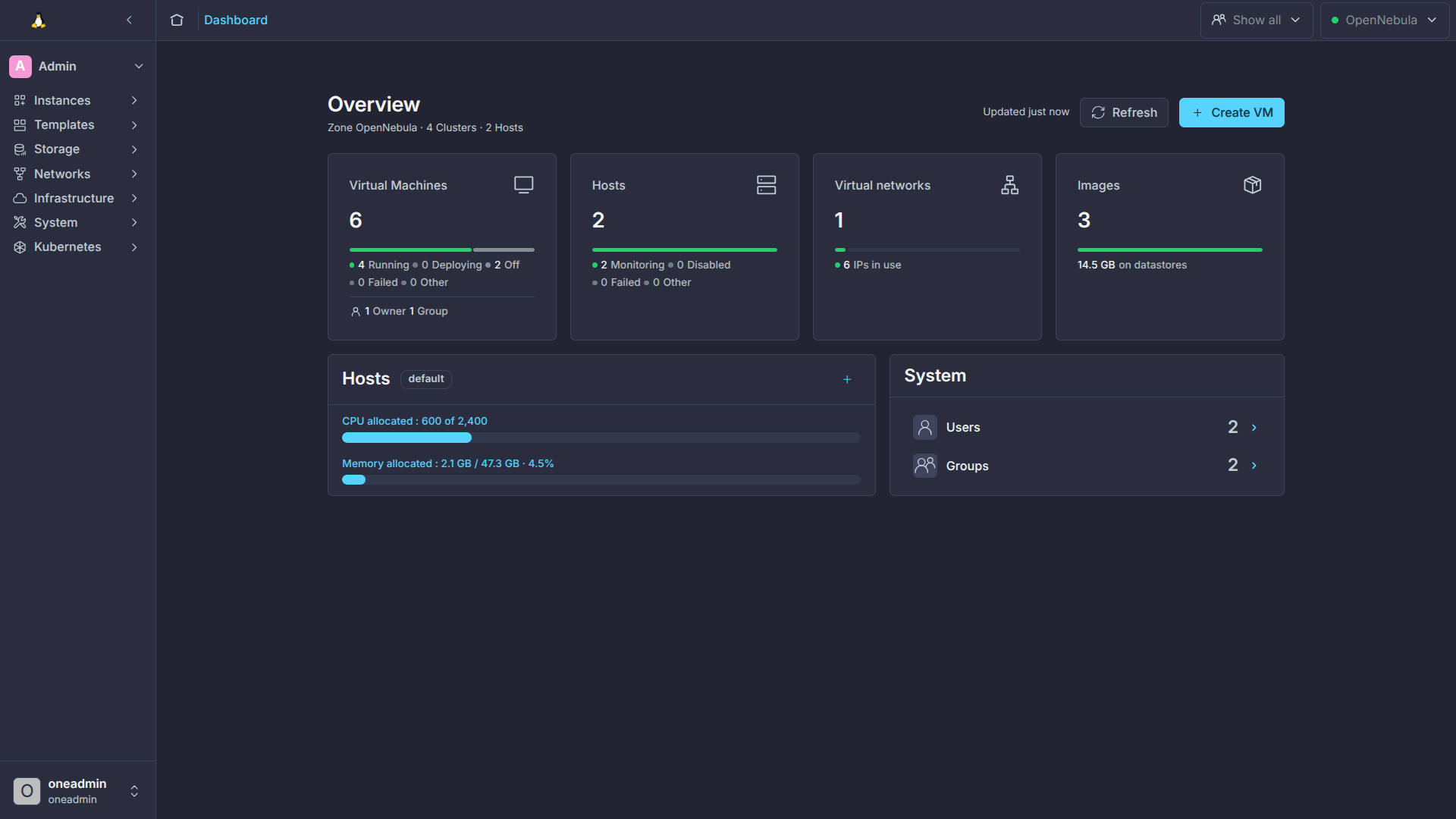
Configure Tables
Tables in Sunstone can be configured to visualize data as a table or as a list of cards:
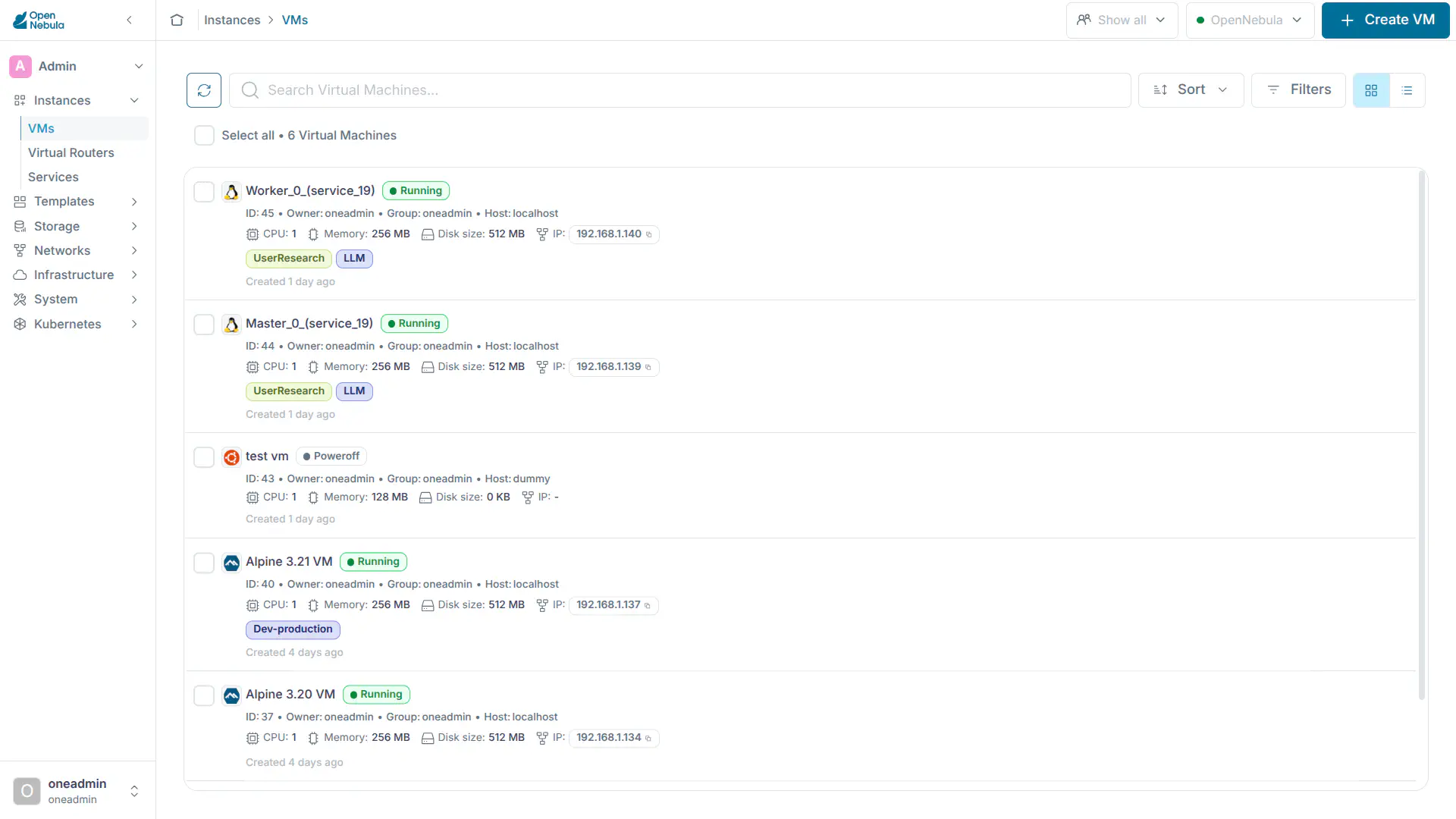
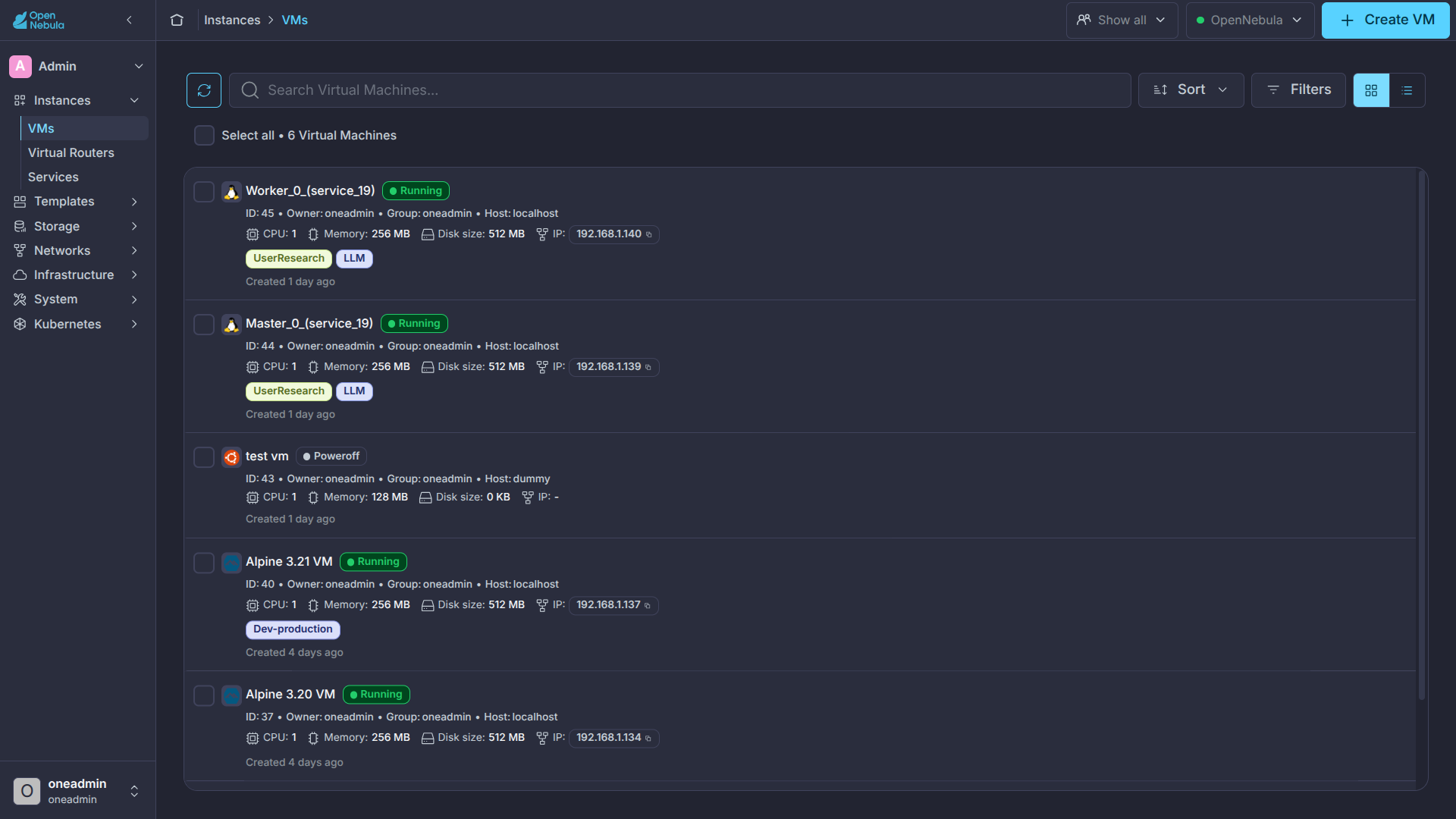
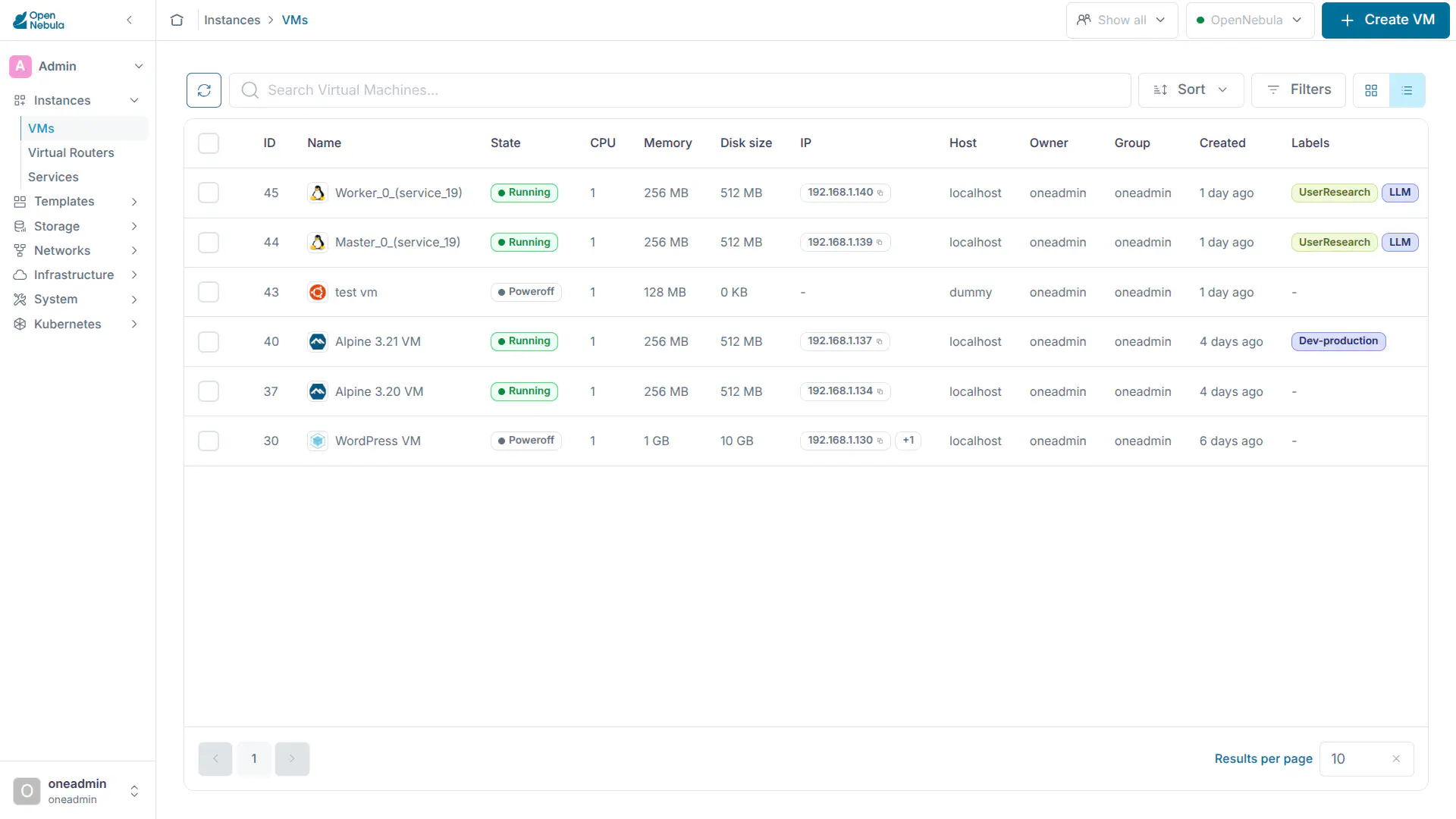
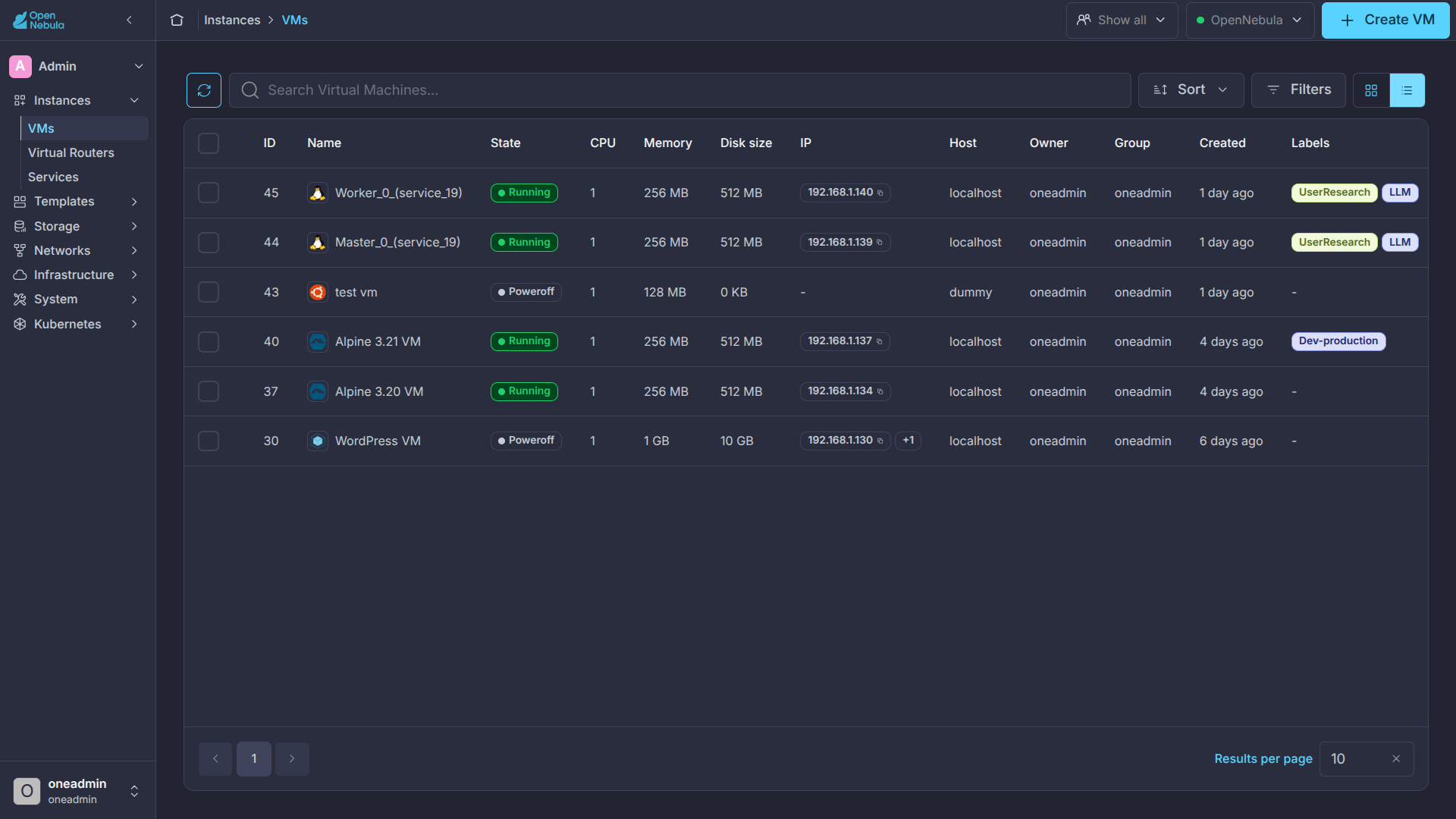
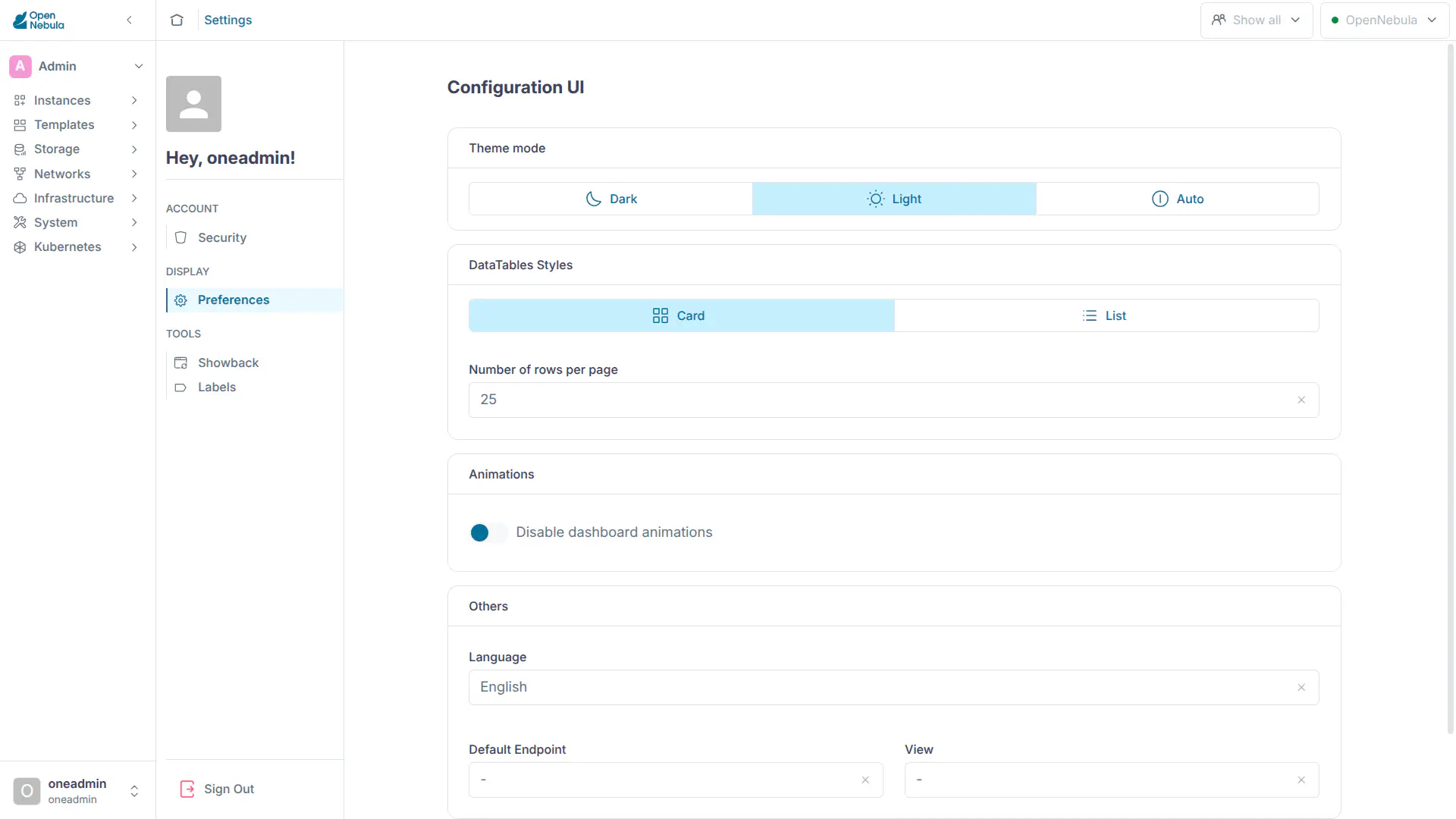
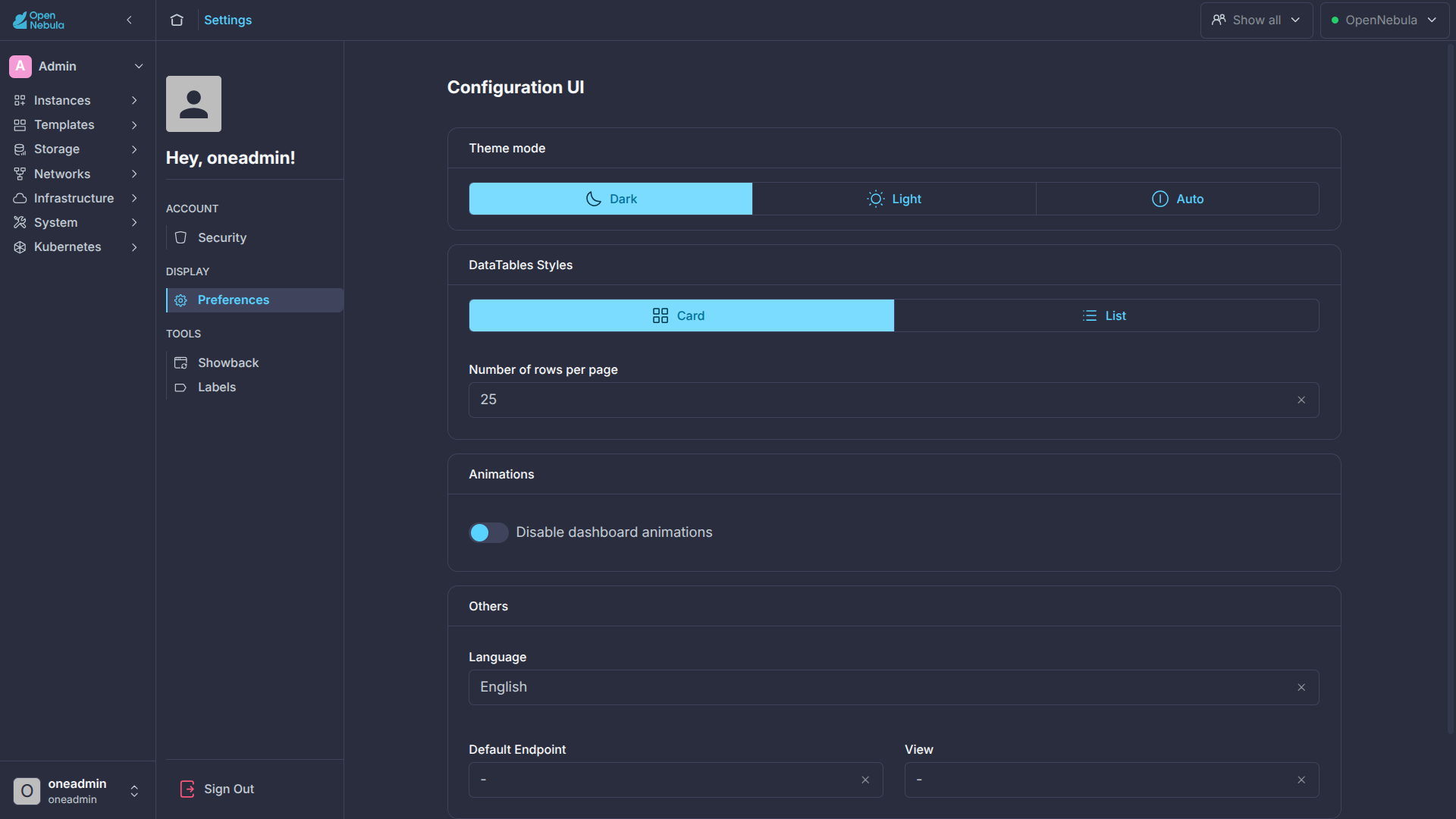
This configuration could be modified in the /etc/one/fireedge/sunstone/sunstone-server.conf file modifying the parameter rowStyle. See this table.
This configuration will be overridden for a specific user if the user changes the configuration in the settings section.
Customize colors
Sunstone will store the colors used in its components in two different files:
- For light mode:
src/modules/providers/theme/palettes/light.js - For dark mode:
src/modules/providers/theme/palettes/dark.js
These two files store a JSON object that has the same structure but with different values in order to set colors for light and dark mode.
| Key | Description |
|---|---|
| mainContainer | Defines the background color of the app. |
| buttons | Defines the different colors used in buttons. |
| tables | Defines the different colors used in resource tables. |
| tabs | Defines the different colors used in the component tabs, the one used in the details of a resource. |
| searchBar | Defines the different colors used in the search bar placed over all the resource tables. |
| sidebar | Defines the different colors used in the sidebar menu. |
| scrollbar | Defines the color of the scrollbar. |
| login | Defines the different colors used in login. |
| switchViewTable | Defines the different colors used in the button to switch between view types. |
| breadCrumb | Defines the different colors used in the breadcrumb. |
| topbar | Defines the different colors used in the topbar of the app. |
| footer | Defines the different colors used in the footer of the app. |
| graphs | Defines the different colors used in the different graphs used in the app. |
Configure Guacamole
FireEdge uses Apache Guacamole, a free and open source web application that allows you to access a remote console or desktop of the Virtual Machine anywhere using a modern web browser. It is a clientless remote desktop gateway which only requires Guacamole installed on a server and a web browser supporting HTML5.
Guacamole supports multiple connection methods such as VNC, RDP, and SSH and is made up of two separate parts - server and client. The Guacamole server consists of the native server-side libraries required to connect to the server and the Guacamole proxy daemon (guacd), which accepts the user’s requests and connects to the remote desktop on their behalf.
opennebula-guacd and service opennebula-guacd), which is installed alongside FireEdge. In the default configuration, the Guacamole proxy daemon is automatically started along with FireEdge, and FireEdge is configured to connect to the locally-running Guacamole. No extra steps are required!
If Guacamole is running on a different Host to the FireEdge, the following FireEdge configuration parameters have to be customized:
guacd/hostguacd/port
Service Control and Logs
Change the server running state by managing the operating system service opennebula-fireedge.
To start, restart, or stop the server, execute one of:
$ systemctl start   opennebula-fireedge
$ systemctl restart opennebula-fireedge
$ systemctl stop    opennebula-fireedge
To enable or disable automatic start on host boot, execute one of:
$ systemctl enable  opennebula-fireedge
$ systemctl disable opennebula-fireedge
Server logs are located in /var/log/one in the following files:
/var/log/one/fireedge.log: operational log./var/log/one/fireedge.error: errors and exceptions log.
Other logs are also available in Journald. Use the following command to show them:
$ journalctl -u opennebula-fireedge.service
Troubleshooting
Conflicting Port
A common issue when starting FireEdge is a used port:
Error: listen EADDRINUSE: address already in use 0.0.0.0:2616
If another service is using the port, you can change FireEdge configuration (/etc/one/fireedge-server.conf) to use another Host/port.
GIVE FEEDBACK
Was this resource helpful?
Glad to hear it
Sorry to hear that